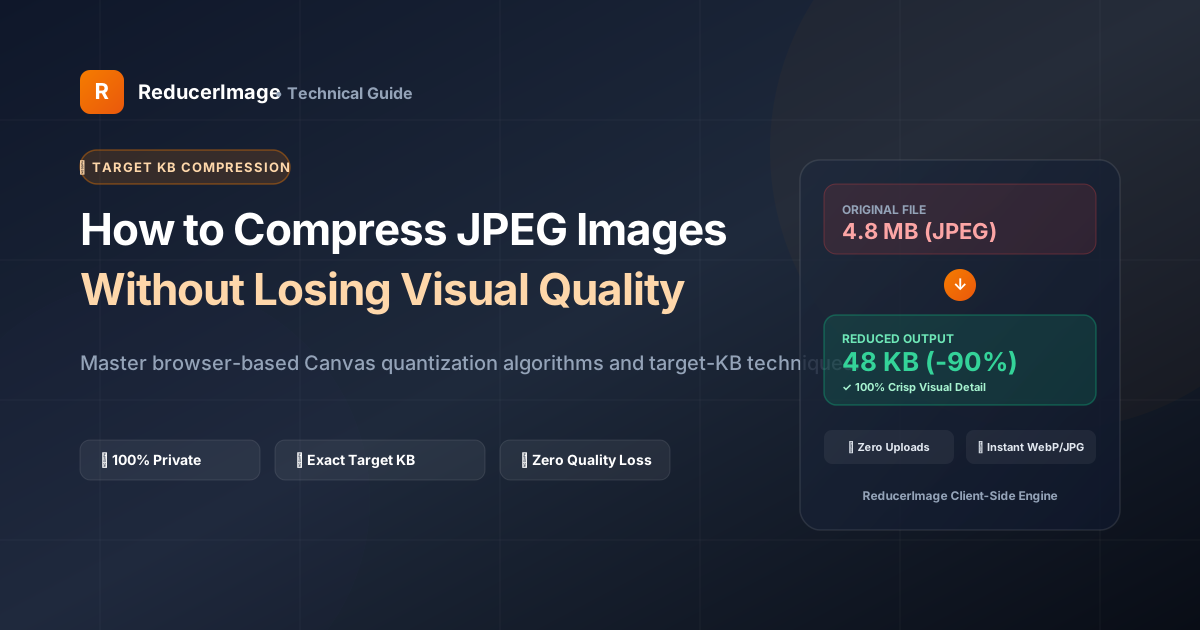
Whether you are optimizing images for a fast-loading website or submitting photos to an online application form, JPEG compression is something almost everyone encounters. However, traditional online compression tools often leave you with pixelated artifacts, blurry text, or the privacy risk of uploading personal photos to random cloud servers.
In this guide, we'll walk through how JPEG compression actually works under the hood and how you can reduce file sizes drastically without visible quality loss—all within your web browser.
How JPEG Compression Actually Works
JPEG is a lossy compression format that relies on Discrete Cosine Transform (DCT). When a photo is compressed, the algorithm separates color data (chrominance) from brightness data (luminance). Because the human eye is far more sensitive to brightness differences than subtle color variations, the compressor can safely discard redundant color data without noticeable degradation.
Here is what happens during smart compression:
- Color Subsampling (Chroma Subsampling): Color details are grouped into blocks (typically 4:2:0 subsampling), cutting raw image weight in half before any visible compression occurs.
- Quantization Matrix: High-frequency details that human vision cannot perceive at normal zoom levels are rounded off.
- Huffman Entropy Encoding: The remaining frequency data is packed into a compact binary stream.

The Sweet Spot: What Quality Setting Should You Use?
Many users assume that 100% quality is always necessary. In reality, a JPEG saved at 80% to 85% quality looks virtually identical to an uncompressed 100% file to the human eye, but occupies 60% to 80% less disk space.
- 85% Quality (Recommended for Web & Portals): Clean edges, zero visible artifacts, 70% file size reduction.
- 75% Quality (Ideal for Mobile Optimization): Minor loss only visible under 400% zoom, 85% file size reduction.
- Below 60% Quality: Noticeable blocking artifacts around sharp contrasts (like text or borders).
Step-by-Step: Compressing Images on ReducerImage
- Select or Drop Your Image: Drop any JPG, PNG, or WebP photo into the upload area. You can also paste directly using
Ctrl + V. - Choose Quality or Target KB: If you have a specific requirement (like 50 KB or 100 KB), select the target size mode. Otherwise, choose the Balanced (82%) preset.
- Inspect the Before/After Comparison: Use the interactive split divider to verify that fine details—such as facial features, signatures, and background textures—remain razor-sharp.
- Download Instantly: Save the optimized image to your phone or computer. The whole process takes less than a second.
Why In-Browser (Client-Side) Processing Matters
Unlike conventional web utilities that transmit your files to external cloud servers, ReducerImage processes everything locally in your device's memory using modern WebAssembly and HTML5 Canvas APIs. This provides three concrete benefits:
- Zero Data Usage for Uploads: You don't have to upload a 5 MB photo over mobile data.
- Absolute Privacy: Your identity documents, tax papers, and personal photos never leave your device.
- Instant Processing: Zero queue times or server delays.
Reader Comments (0)