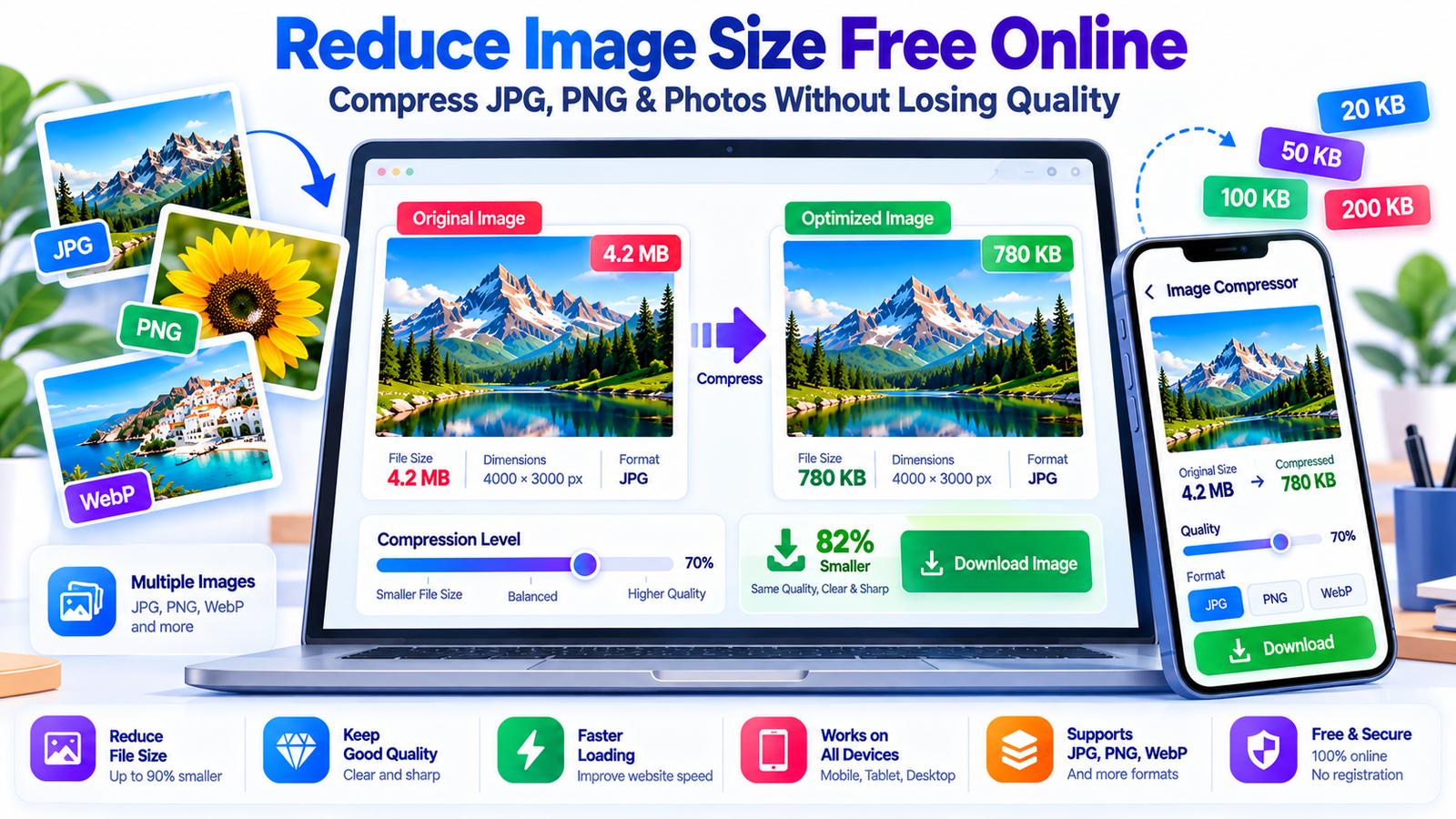

Images are essential for websites, social media, online forms, e-commerce stores, blogs, and everyday sharing but large image files can quickly become a problem.
A high-resolution photo may look excellent while taking several megabytes of storage and making uploads or webpages slower. Fortunately, you can reduce image size free online without complicated software or advanced editing skills. Modern image compression tools can reduce JPG, PNG, WebP, and photo file sizes while preserving much of the original visual quality.
What Does Reduce Image Size Free Online Mean?

Reducing image size online generally means decreasing the file size of an image while keeping its dimensions and visual appearance as close as practical to the original.
For example, a 3 MB JPG photograph might be compressed to 700 KB or 500 KB, depending on its dimensions, image content, quality settings, and compression method.
The process can remove unnecessary metadata, optimize image encoding, reduce redundant information, or adjust image quality and dimensions.
There is an important distinction between image dimensions and image file size. Dimensions refer to the number of pixels.
for example, 4000 × 3000 pixels—while file size refers to how much storage the image occupies, such as 2 MB or 850 KB. You can reduce an image's dimensions from 4000 × 3000 to 1600 × 1200, compress the resulting image, or perform both operations.
How to Compress JPG, PNG and Photos Without Losing Quality

JPG compression is particularly useful for photographs, screenshots, travel pictures, product images, and other images containing millions of colors. JPG uses lossy compression, which means some visual information can be discarded to achieve a much smaller file size.
However, a carefully selected quality level can make the changes difficult to notice while significantly reducing the file size. For most ordinary photographs, moderate compression provides a useful balance between image quality and storage requirements.
PNG compression works differently and is particularly valuable for graphics, logos, illustrations, screenshots, icons, and images requiring transparency. PNG is normally lossless, meaning the visual information can be retained while optimization reduces unnecessary data.
Because PNG files can become large when they contain photographic content, converting an appropriate photographic PNG to JPG or WebP can sometimes produce a much smaller file.
Best Ways to Reduce Image Size in KB Online

For example, suppose an application requires a photograph below 100 KB. Starting with a 4000 × 3000 pixel camera image may make it unnecessarily difficult to reach the target while maintaining good clarity. Resizing it to a sensible resolution can dramatically reduce the amount of image data that must be stored.
After resizing, JPG compression can further reduce the file size. If the resulting image is still above the limit, the compression quality can be adjusted gradually rather than immediately choosing an extremely low quality setting.
When targeting an exact or approximate file size, remember that there is no universal quality percentage that produces a particular KB size. Two photographs with identical dimensions can have dramatically different file sizes because their content is different.
A detailed outdoor photograph with foliage and textures contains more information than a simple image containing a flat background.
JPG vs PNG vs WebP: Which Image Format Gives the Smallest File Size?

JPG remains one of the most practical formats for reducing the size of photographs. It is widely supported, relatively compact, and designed specifically for photographic imagery. A high-resolution camera photo saved as JPG can often be reduced considerably without an obvious difference at normal viewing sizes. JPG is therefore a common choice for website photographs, profile pictures, product images, blog illustrations, and online forms that do not require transparency. However, excessive JPG compression can introduce visible artifacts around text, edges, and high-contrast objects, so the quality setting should be selected according to the purpose of the image.
PNG is usually better suited to images where sharp edges, transparency, or exact pixel information are important. Logos, diagrams, icons, interface screenshots, and simple illustrations can work particularly well in PNG.
Lossless PNG optimization can remove unnecessary information without visibly changing the image, although the resulting file can still be larger than an equivalent JPG when the source is a photograph. If the goal is simply to make a photographic image as small as possible, converting PNG to a suitable photographic format may provide a larger reduction than PNG optimization alone.
WebP and other modern image formats can provide an attractive alternative when browser and application compatibility is sufficient.
WebP can support both lossy and lossless compression and can include transparency. For websites, using an appropriately optimized modern format can reduce bandwidth and improve loading performance. Nevertheless, format selection should consider the destination platform.
If an older application specifically requires JPG or PNG, converting to WebP may not solve the actual problem. The ideal format is therefore not simply the one that produces the smallest file; it is the format that meets the required compatibility, quality, transparency, and file-size constraints.
How to Reduce Photo Size Without Losing Visible Quality

The phrase “without losing quality” can be slightly misleading because lossy compression technically discards some information. What users generally want is to reduce the file size while keeping the image visually indistinguishable or sufficiently close to the original—for its intended purpose. The most effective strategy is to avoid unnecessary resolution. A photo that will appear as a 600-pixel-wide image on a webpage does not necessarily need to remain a 5000-pixel-wide camera original. Reducing excessive dimensions before compression can produce a substantial file-size reduction while retaining more than enough detail for the final display.
Another useful technique is to remove unnecessary metadata. Digital photographs can contain EXIF information such as camera settings, orientation, timestamps, and sometimes location-related information. Metadata can be useful in some workflows, but it does not contribute to the visible image itself. An image optimization process may remove selected metadata to reduce the file size. This can also be beneficial from a privacy perspective when metadata contains information that does not need to accompany the image.
Compression should also be matched to the image's purpose. A photograph intended for a small website thumbnail can tolerate stronger compression than a large image intended for printing. A government-form photograph may need to satisfy a strict KB limit while remaining recognizable. A product photograph may need more detail because customers rely on it to inspect the item. A social-media image may prioritize dimensions and platform compatibility.
Free Online Image Compressor for Websites, Forms and Social Media

A free online image compressor can be useful when you need a quick result without installing software. A typical workflow involves selecting one or more images, uploading them to the compressor, choosing compression or resize settings, processing the files, and downloading the optimized versions. Browser-based tools are especially convenient for occasional tasks because they can work across Windows, macOS, Linux, Android, and other platforms with a modern web browser. For users who regularly process images, batch compression can save additional time by handling multiple files in one operation.
For websites, image optimization has an additional benefit: smaller images can reduce the amount of data visitors need to download. Large unoptimized photographs can contribute to slower page loads, especially on mobile connections. Compressing images before publishing can reduce bandwidth usage and help keep pages responsive. However, optimization should be performed alongside other performance practices such as appropriate image dimensions, responsive images, caching, modern formats where supported, and efficient page code. An image compressor is an important part of website optimization, but it is not the only factor that determines performance.
How to Reduce Image Size on Mobile and PC
Reducing image size does not necessarily require a powerful computer. On a PC, you can use a browser-based image compressor and select files directly from your computer. On Android or iPhone, the same type of browser-based tool can allow you to select photographs from the device's photo library or file manager.
This makes online compression particularly useful when you need to prepare an image for an application while using a smartphone. Before uploading sensitive images to any online service, however, review the service's privacy and processing practices and understand whether files are uploaded to a remote server or processed locally in your browser.
For users who frequently need to prepare images for applications, it is useful to create a simple workflow: keep the original photograph untouched, make a working copy, crop unnecessary areas if appropriate, resize to the required dimensions, choose the required format, compress the image, and verify the final KB size. This avoids repeatedly editing the same original and gives you a backup if the image needs to be processed differently later. If a form rejects an image even though its size is within the limit, check the file format, dimensions, color mode, and filename because file size is only one possible validation criterion.
How Image Compression Works

With JPG, compression works partly by transforming and simplifying visual information. As compression becomes stronger, fine details may disappear and artifacts can become visible. You may notice block-like patterns, ringing around sharp edges, or a loss of texture. PNG uses a lossless approach and is therefore unable to achieve the same type of aggressive reduction without changing the image or converting it to another format. Modern formats such as WebP can use both lossy and lossless approaches, giving developers and users more flexibility.
Resizing is another form of image optimization that can have a major effect on file size. Reducing a photograph from several thousand pixels in width to a more appropriate display size decreases the number of pixels that need to be encoded. This is why the combination of resize + compress can often outperform compression alone. If a source image is significantly larger than its intended use, resizing it first can reduce file size while preserving a visually sharp result at the final display dimensions.
Tips for Compressing Images for Google, Websites and SEO

Image optimization can contribute to a better website experience because smaller image resources can require less bandwidth. When publishing images, avoid uploading a massive camera original when the page only needs a much smaller display size. Use descriptive filenames and appropriate alternative text, but remember that SEO metadata cannot compensate for an unnecessarily large image. Compress images before uploading them and select a format appropriate to the content. Photographs generally need different treatment from logos, icons, screenshots.
Responsive image delivery is also important for modern websites. A visitor on a mobile phone should not necessarily have to download the same huge image file served to a large desktop display. Multiple image sizes can allow the browser to select an appropriate resource for the available display. Modern image formats can further reduce transfer sizes where supported. Combining sensible dimensions, compression, responsive delivery, lazy loading where appropriate, and good caching practices creates a more complete image-performance strategy than relying on compression alone.
It is equally important not to sacrifice usability in the pursuit of the smallest possible file. An extremely compressed image may technically improve file-size metrics but look blurry, contain visible artifacts, or make text difficult to read. Search engines and users both benefit from pages that deliver useful, readable content efficiently. Therefore, the goal should be efficient visual quality, not simply the smallest possible number of kilobytes. Test optimized images on both desktop and mobile displays and compare them with the original before publishing.
Common Image Compression Mistakes to Avoid

One common mistake is repeatedly compressing and saving the same JPG. Because JPG compression is lossy, repeated encoding can gradually reduce image quality. A better approach is to maintain the original image and create an optimized copy from that source. Another mistake is using extremely aggressive compression simply to reach the smallest possible file size. If the image contains text, faces, product details, or important visual information, excessive compression may make the result difficult to use.
Another mistake is confusing resizing with compression. Changing a file's dimensions can reduce its size, but it does not necessarily produce the desired KB limit. Conversely, compression alone may leave an unnecessarily large pixel dimension. For applications with strict requirements, you may need both operations. Also avoid converting every image to the same format. A transparent logo saved as JPG may lose transparency, while a photographic PNG may occupy far more space than necessary.
Finally, never assume that an image is ready simply because the compressor reports a percentage reduction. Always inspect the final output. Check whether the file opens correctly, whether important details remain readable, whether transparency is preserved when necessary, and whether the final dimensions and KB size meet the destination's requirements. For sensitive documents, consider privacy carefully and use services that clearly explain how uploaded files are handled—or use local/browser-based processing when appropriate.
Conclusion: Reduce Image Size Free Online Easily
Reduce image size free online tools make it much easier to prepare photographs and graphics for websites, online forms, social media, email, applications, and everyday sharing. The best results come from understanding the difference between dimensions and file size, choosing the right format, resizing unnecessarily large images, and applying compression carefully. JPG is generally effective for photographs, PNG is useful for transparent graphics and lossless images, and modern formats such as WebP can provide additional flexibility when supported.
If you need a specific KB limit, use a target-size workflow rather than relying on a fixed compression percentage. Keep your original image, create an optimized copy, verify the final file, and make sure it satisfies the destination's format and dimension requirements. Most importantly, aim for the best balance between small file size, visual quality, compatibility, and usability rather than simply trying to produce the smallest possible file.
Frequently Asked Questions About Reducing Image Size
How can I reduce image size free online?
You can use an online image compressor to upload your JPG, PNG, WebP, or compatible image, select compression settings, process the image, and download the optimized version. If you have a strict KB requirement, choose a tool that supports target-size compression or combine resizing with compression.
How do I reduce a JPG image size without losing quality?
Start with the original JPG, resize it to an appropriate resolution if it is unnecessarily large, and then apply moderate compression. Avoid repeatedly compressing the same file. Compare the optimized version with the original at its intended display size to determine whether the quality is acceptable.
Can I reduce an image to 20 KB?
Yes, an image can often be reduced to approximately 20 KB, but the result depends on its dimensions, format, content, and required visual quality. Reaching a very small target such as 20 KB may require both resizing and compression. Some images may require stronger compression than others.
How can I reduce an image to 50 KB or 100 KB?
For a 50 KB or 100 KB requirement, first resize the image to sensible dimensions and then compress it. If the file remains above the limit, gradually increase compression or reduce the dimensions further. Target-size image compressors can simplify this process.
Is JPG smaller than PNG?
For most photographs, JPG is usually smaller than PNG because JPG is designed for efficient photographic compression. PNG can be preferable for transparent graphics, logos, screenshots, and images where lossless quality is important. The actual file size depends on the image's content and settings.
Does compressing an image reduce its quality?
It can. Lossy compression removes some image information, although moderate compression may produce a result that looks virtually identical at normal viewing sizes. Lossless optimization can reduce file size without changing the image information, but usually cannot achieve the same degree of reduction as aggressive lossy compression.
What is the difference between resizing and compressing an image?
Resizing changes the pixel dimensions of an image—for example, from 4000 × 3000 pixels to 1600 × 1200 pixels. Compression changes how efficiently the image data is stored. Both techniques can reduce file size, and using them together is often effective when an image is significantly larger than necessary.
Can I reduce image size on my phone?
Yes. Browser-based image compression tools can be used on many smartphones without installing specialized software. Select the image from your phone, process it with the required settings, and save or download the optimized file. Always consider privacy when processing sensitive documents online.
What is the best image format for a website?
There is no single format that is best for every image. JPG is commonly suitable for photographs, PNG works well for transparency and certain graphics, and modern formats such as WebP can provide efficient compression for many web images. The correct choice depends on image content, browser support, transparency requirements, and desired quality.
Does reducing image size improve website speed?
Smaller image files can reduce the amount of data a browser needs to download, which can contribute to faster page loading, especially on slower connections. For best results, combine image compression with appropriate dimensions, responsive images, efficient caching, lazy loading where appropriate, and other website performance practices.
Can I compress multiple images at once?
Yes. Tools that support batch image compression can process multiple images together. Batch processing is useful for websites, e-commerce stores, photographers, bloggers, and other workflows involving many files. For mixed image types, however, review the output because photographs and graphics may require different optimization settings.
Is online image compression safe?
Safety depends on how the particular service processes uploaded files and what information it retains. Before uploading sensitive photographs or identity documents, review the service's privacy policy and processing method. When privacy is especially important, browser-based or local processing can reduce the need to transmit image data to a remote server.
Why does the same compression setting produce different file sizes?
Different images contain different amounts and types of visual information. A simple image with a large uniform background can compress much more efficiently than a highly detailed photograph. Consequently, the same dimensions and nominal quality setting can produce very different final file sizes.
What should I do if an online form rejects my compressed image?
Check more than the file size. Verify the required format, maximum dimensions, minimum dimensions, file extension, color requirements, and filename rules. Some application portals also have specific requirements for photographs and signatures. If the image satisfies the stated requirements but is still rejected, try opening and re-saving a valid copy in the required format.
Reader Comments (0)