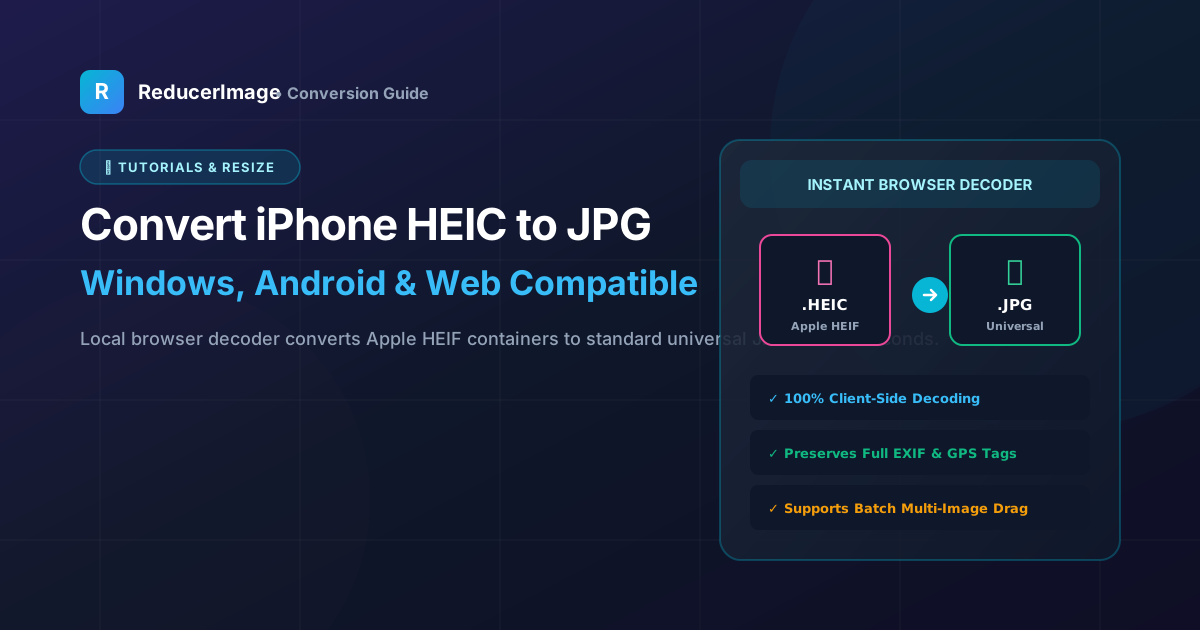
If you take a photo on an iPhone and try to upload it to an online job portal, university admission form, or Windows PC, you will often encounter an unsupported format error. That is because modern iOS devices save photos in Apple's proprietary HEIC (High Efficiency Image Container) format instead of standard JPEG.
Why Does Apple Use HEIC?
HEIC is based on HEVC (H.265) video compression technology. It allows your iPhone camera to capture rich 10-bit color and sharp details in roughly half the file size of an equivalent JPEG. A 12 MP photo that would take 4 MB in JPEG takes only about 1.8 MB in HEIC.
However, the downside is compatibility: most government portals, bank websites, older Windows machines, and Android devices cannot read HEIC files natively.

How to Convert HEIC to JPG Safely in Your Browser
Many online converter sites require you to upload your sensitive camera roll photos to remote servers. With ReducerImage's HEIC to JPG Converter, conversion is handled 100% locally inside your device using fast WebAssembly decoders:
- Drag your
.heicor.heifphotos into the converter. - Select your desired output quality (Standard 90% or Lossless).
- Click Convert to JPG. Your photos are instantly transformed and ready to download with zero server lag.
How to Make Your iPhone Shoot in JPG by Default
If you want your iPhone to capture photos in universal JPEG automatically:
- Open Settings on your iPhone.
- Scroll down and tap Camera.
- Tap Formats.
- Select Most Compatible instead of High Efficiency.
Reader Comments (0)